
At first, setting up a U.S. LLC from Canada may seem complicated, especially when you’re deciding which state to choose, filling in the company details, and looking at the formation costs for the first time. This guide takes you step by step through the application process, using a Wyoming LLC as a practical example. You’ll see what information is required in each field, how to look at the options presented, and what to check before proceeding. It should be noted that the example entries are for illustrative purposes only and you should use your own correct business and member details. Finally, you will know how to complete the formation order and what to anticipate at each stage.
Step 1: Enter Your LLC Company Details
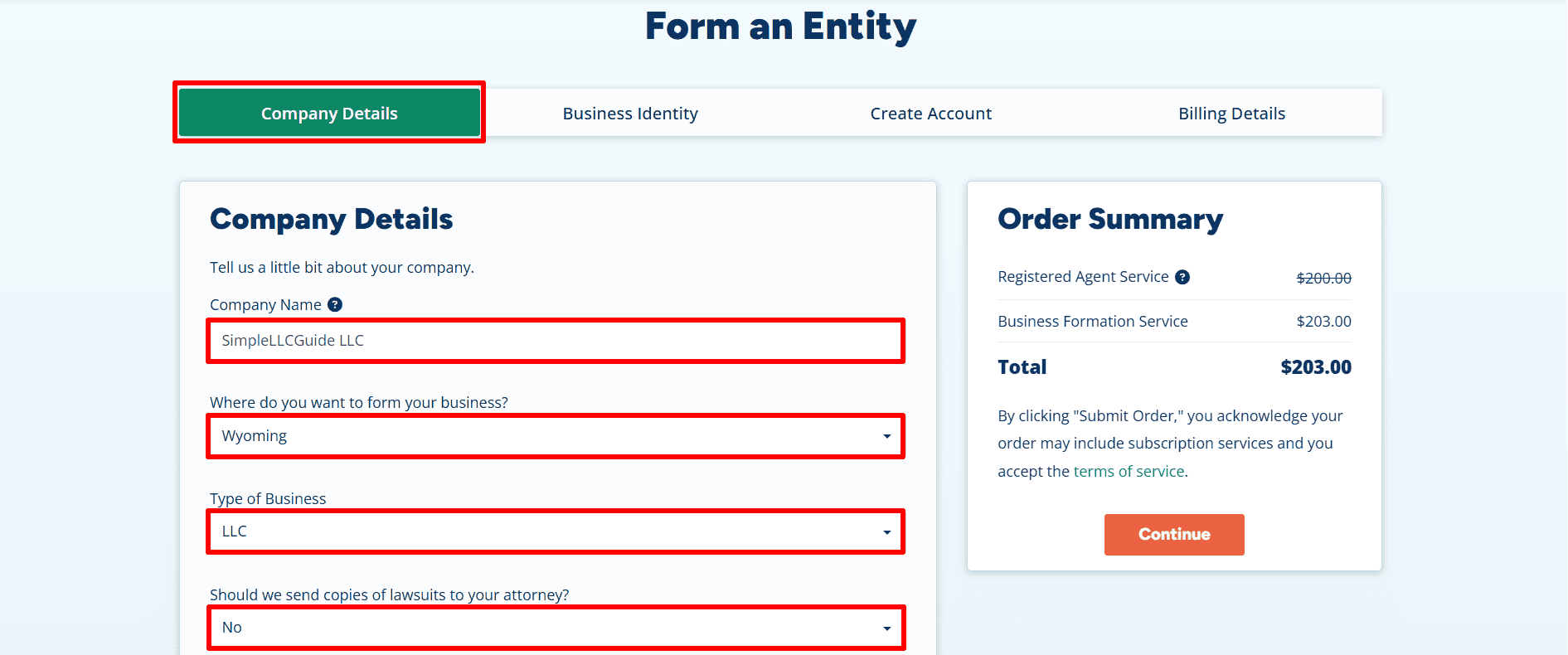
To begin, get started from here and open the formation application. The screenshots show one Company Details page. Enter your own accurate information as you work through it.
- Company Name: The example enters “SimpleLLCGuide LLC.” Enter the name you want for your own company.
- State: Wyoming is selected in this example. Choose the state appropriate for your LLC.
- Type of Business: Select LLC if you are forming a limited liability company, as shown.
- Lawsuit Copies: The example selects No for sending copies of lawsuits to an attorney. Choose the answer that fits your situation.
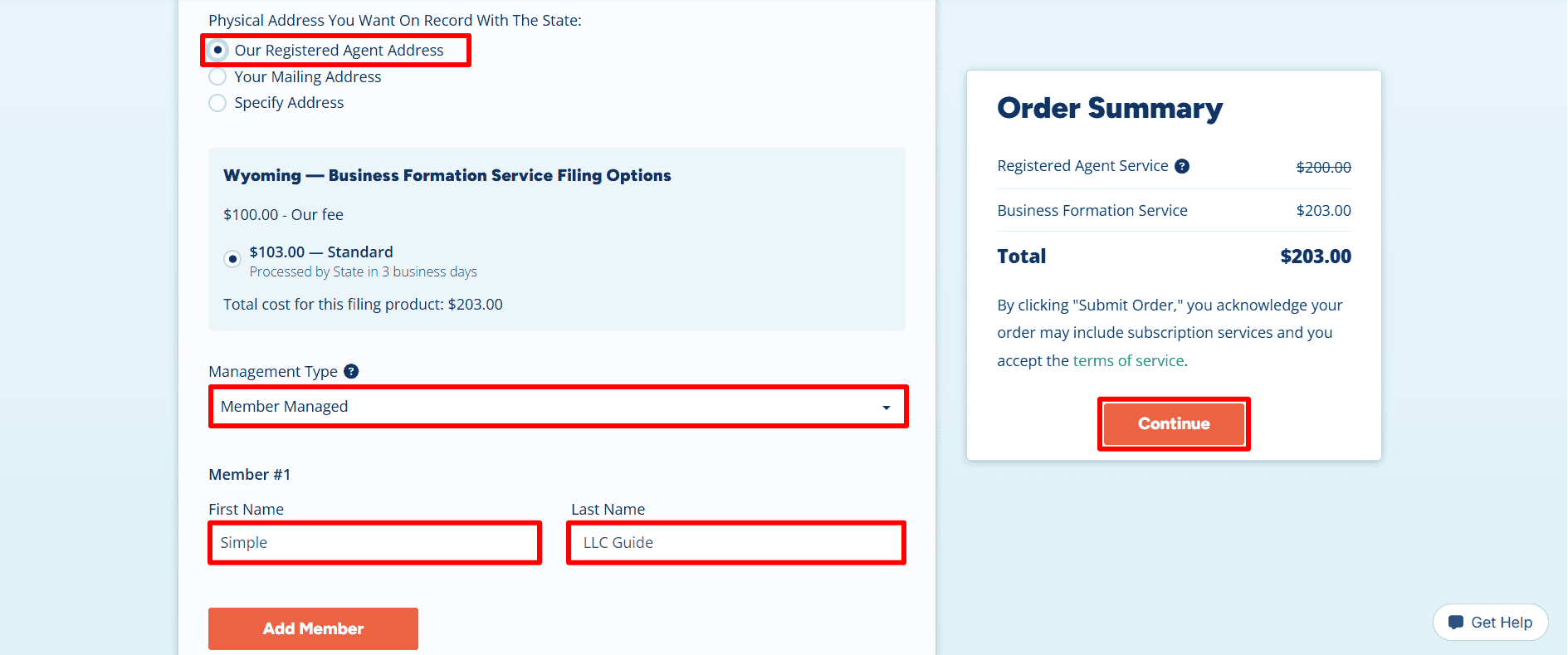
- Address on State Record: The example selects Our Registered Agent Address. The page also offers Your Mailing Address and Specify Address. Review which address should appear on your state record.
- Filing Option: The Wyoming section shows a $100 company fee and a selected Standard filing option of $103. The screen says the state processes this option in three business days.
- Management and Member: Member Managed is selected. The example member name is entered as “Simple” and “LLC Guide.” Choose the correct management type and enter each real member’s name; use Add Member if needed.
- Order Summary: The registered agent service shows a crossed-out $200 charge, and the business formation service shows $203. The displayed total is $203 for this example order. Your price may differ by state and by the services you select. Review the charges and subscription terms before ordering.
- Continue: Once the details are correct, click Continue to move to Business Identity.
Step 2: Review Optional Business Services
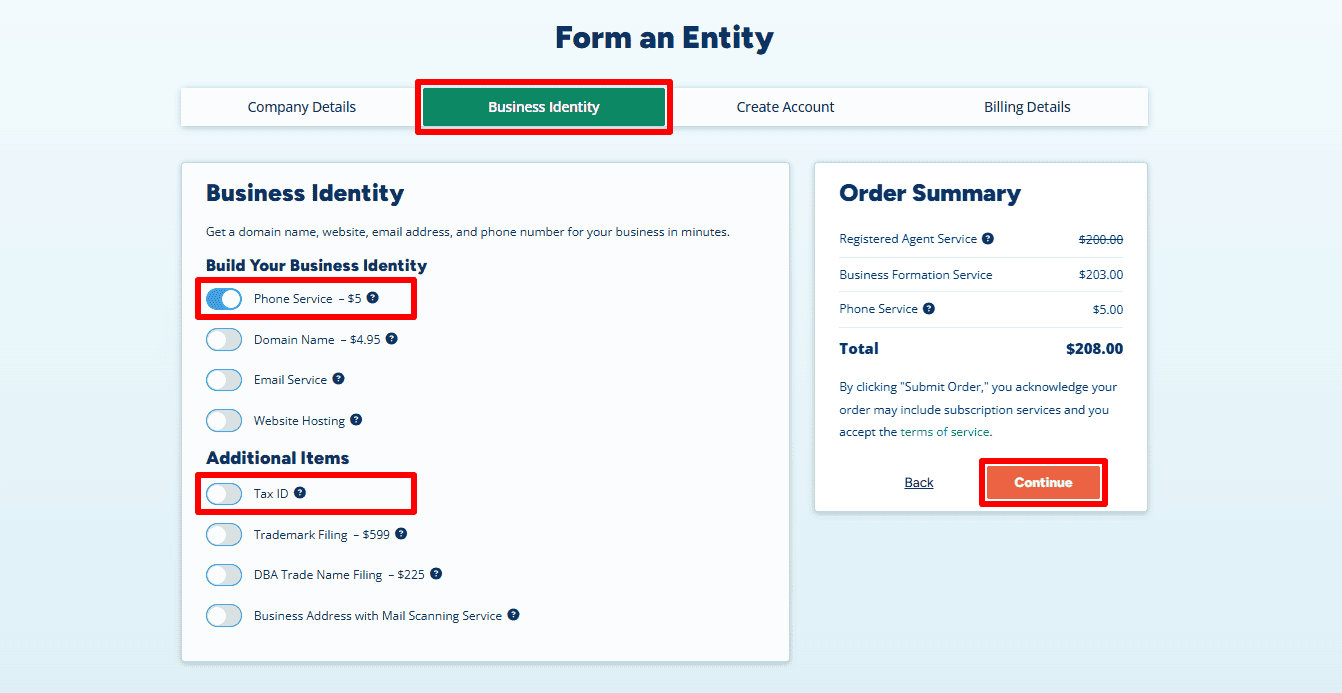
- Phone Service: Phone Service is turned on in this example; an extra amount of $5 is added to the order summary for this example order, so you should check the service terms before selecting it.
- Other services: The other services available include a Domain Name, an Email Service, Website Hosting, and the Additional Items listed; these are optional and you should choose only those that your business requires.
- Tax ID: In the example the Tax ID is missing. Should you wish for Registered Agents Inc to deal with obtaining an Employer Identification Number (EIN) for you, there is a processing charge. Alternatively, you can apply for an EIN yourself with the IRS at no application fee. To do this, follow the guide for U.S. residents or citizens here or the guide for non-U.S. residents here.
- Proceed: Check your choices and then click Continue.
Step 3: Add Contact Information and Create Your Account
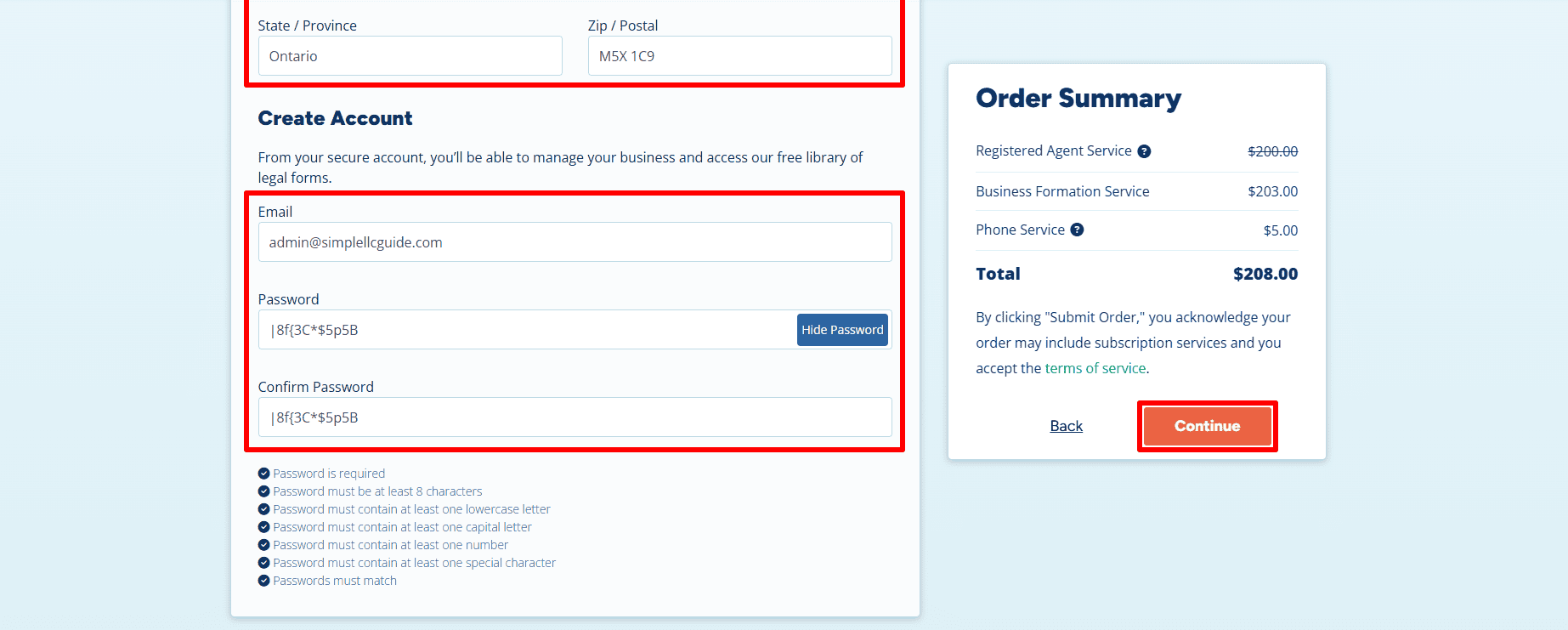
- Contact Info: For contact details, please fill in your first name, last name, and phone number; the example in the text has Canada selected as the country; however, you should use the country that applies to you.
- Address: Fill in the Address, City, State/Province, and Zip/Postal fields with your correct contact information.
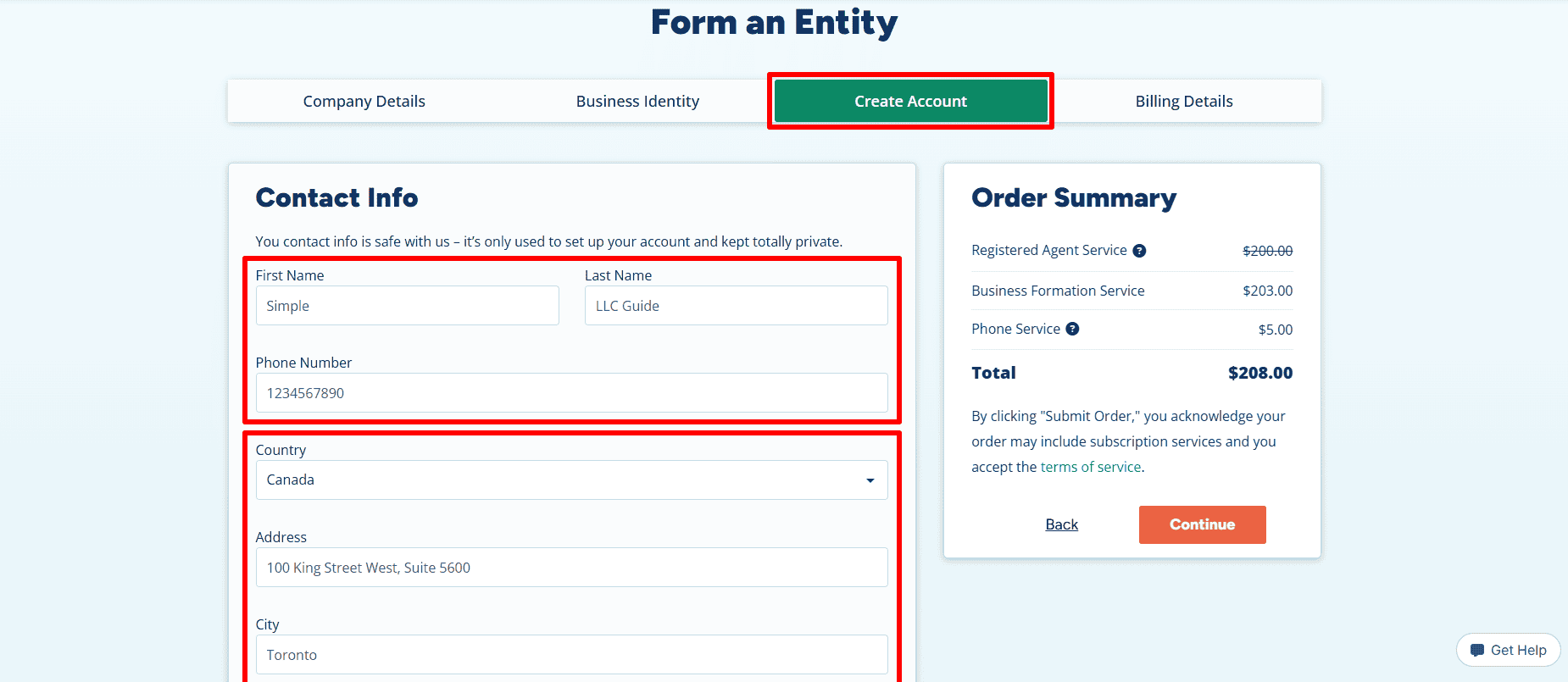
- Create Account: To create an account, you must enter an email address that you have access to; set a password and type it again in the box labeled Confirm Password, making sure that it complies with the rules shown below the fields.
- Click Continue once you have checked your contact and account details.
Step 4: Review Billing Details and Submit Your Order
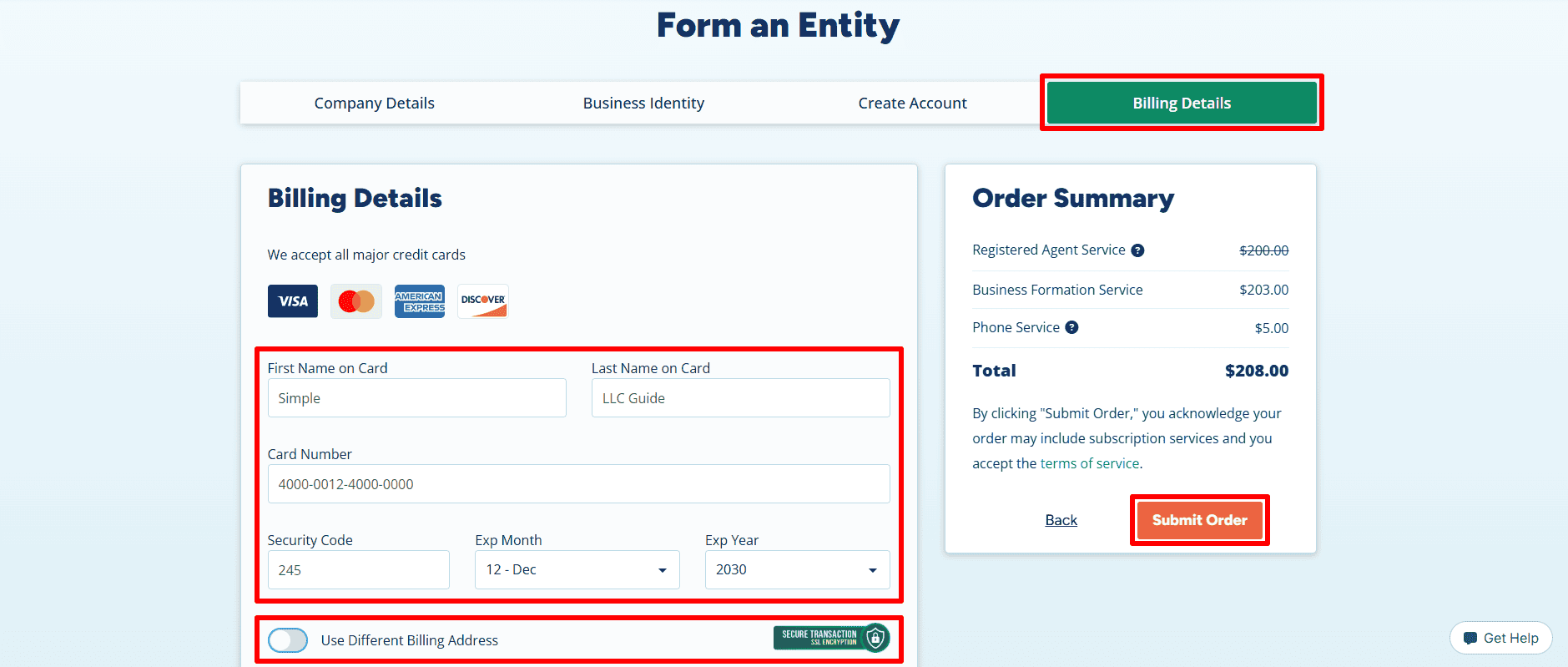
- Card details: For the card details, put the cardholder’s first name in the ‘First Name‘ field and their last name in the ‘Last Name‘ field, then enter the card number, the security code, the expiry month, and the expiry year. Use your own payment information.
- Billing address: If the billing address on your card is different from the contact address, then select Use Different Billing Address.
- Order Summary: Summary of the order: This example shows a total amount of $208 including the Phone Service that has been chosen. Your total could be different. Please check the charges and also look at the notice regarding possible subscription services.
- Submit Order: To place the order, make sure that the details and terms are correct and then click Submit Order. The screenshot shown does not include payment confirmation or indicate that approval has been granted.
Step 5: Add State Filing Details After Payment
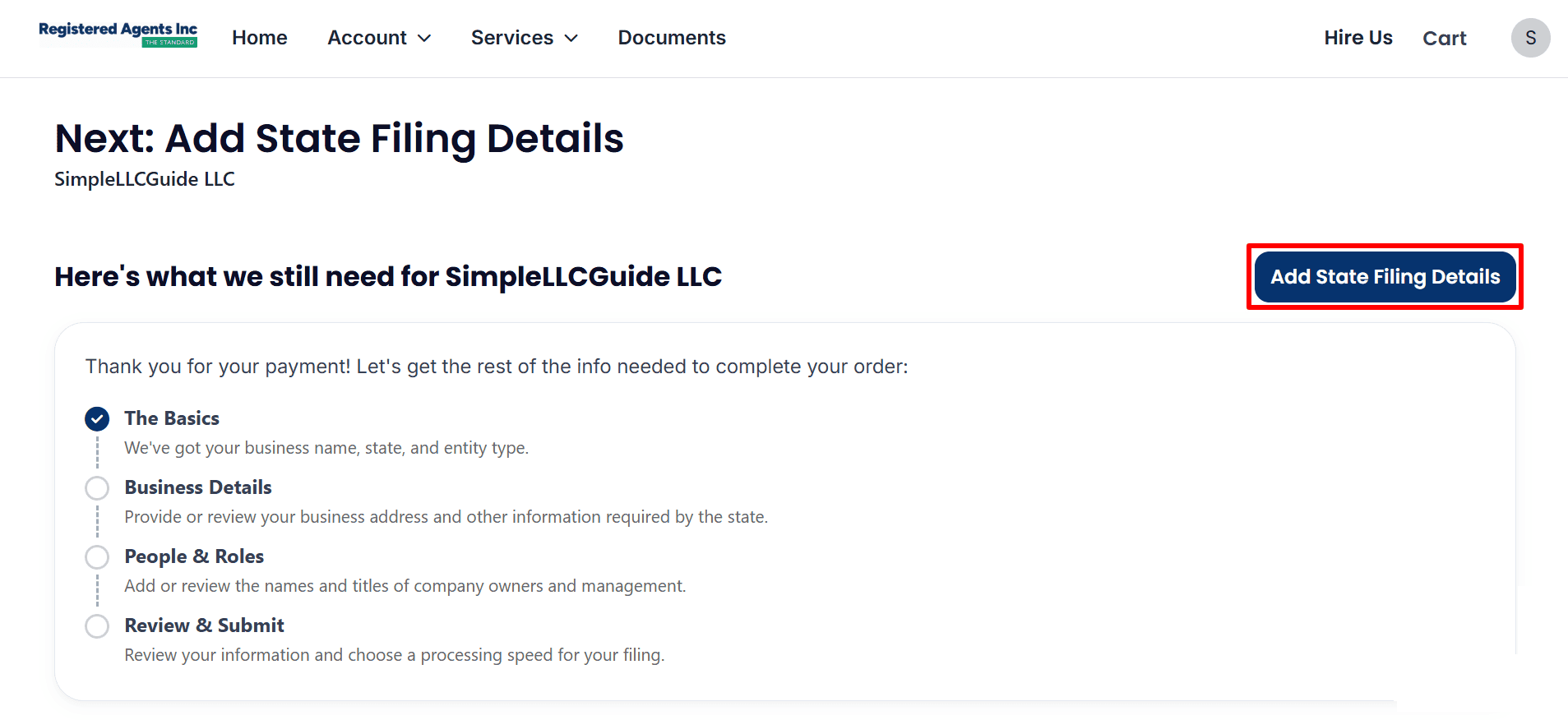
- Order status: The page thanks the customer for having made the payment and states that further information is required in order to finalize the order for the example company, SimpleLLCGuide LLC.
- To add State Filing Details: click on Add State Filing Details. The checklist indicates that The Basics has been completed, but Business Details, People & Roles, and Review & Submit still require your attention. Please fill in the information yourself in the following sections.
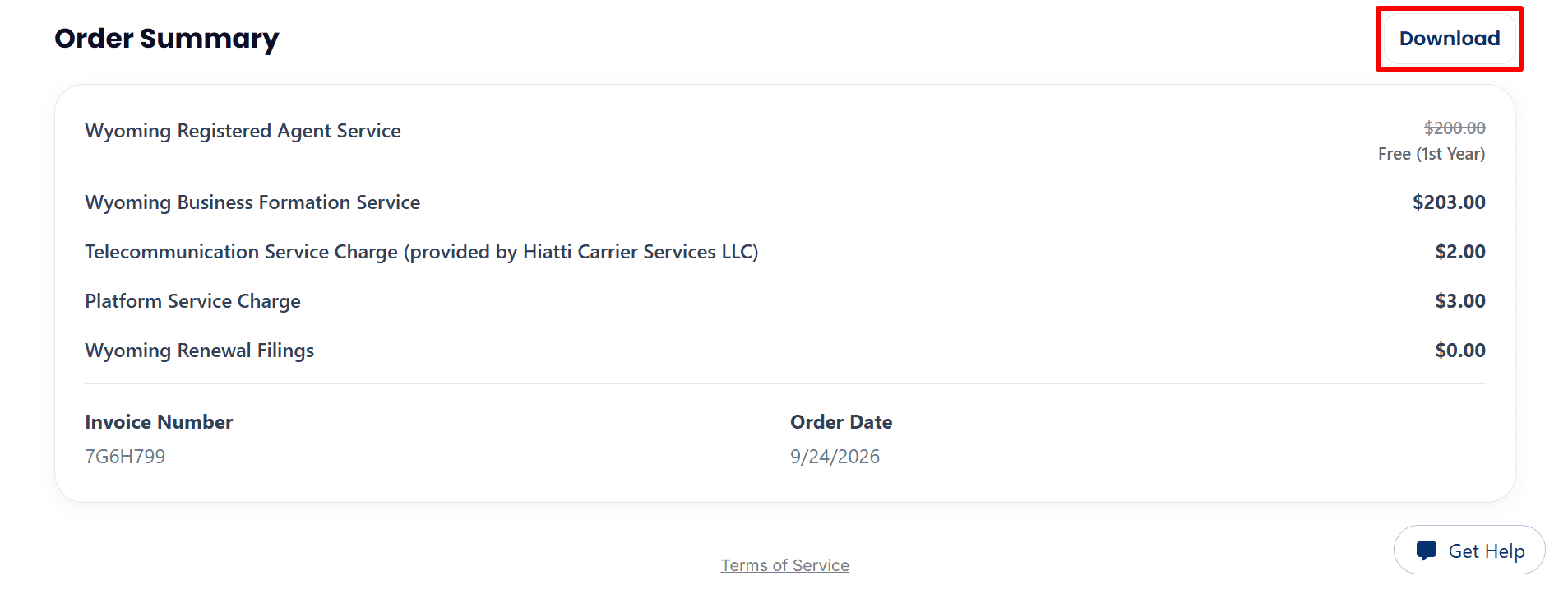
- Order Summary: Review the charges for this example order, including the selected phone service. The amounts shown may differ for your order.
- Download: Click Download to save the invoice for your records. Payment is shown here, but the state filing details still need to be submitted; the screenshots do not show state approval.
Step 6: Complete Your Business Details
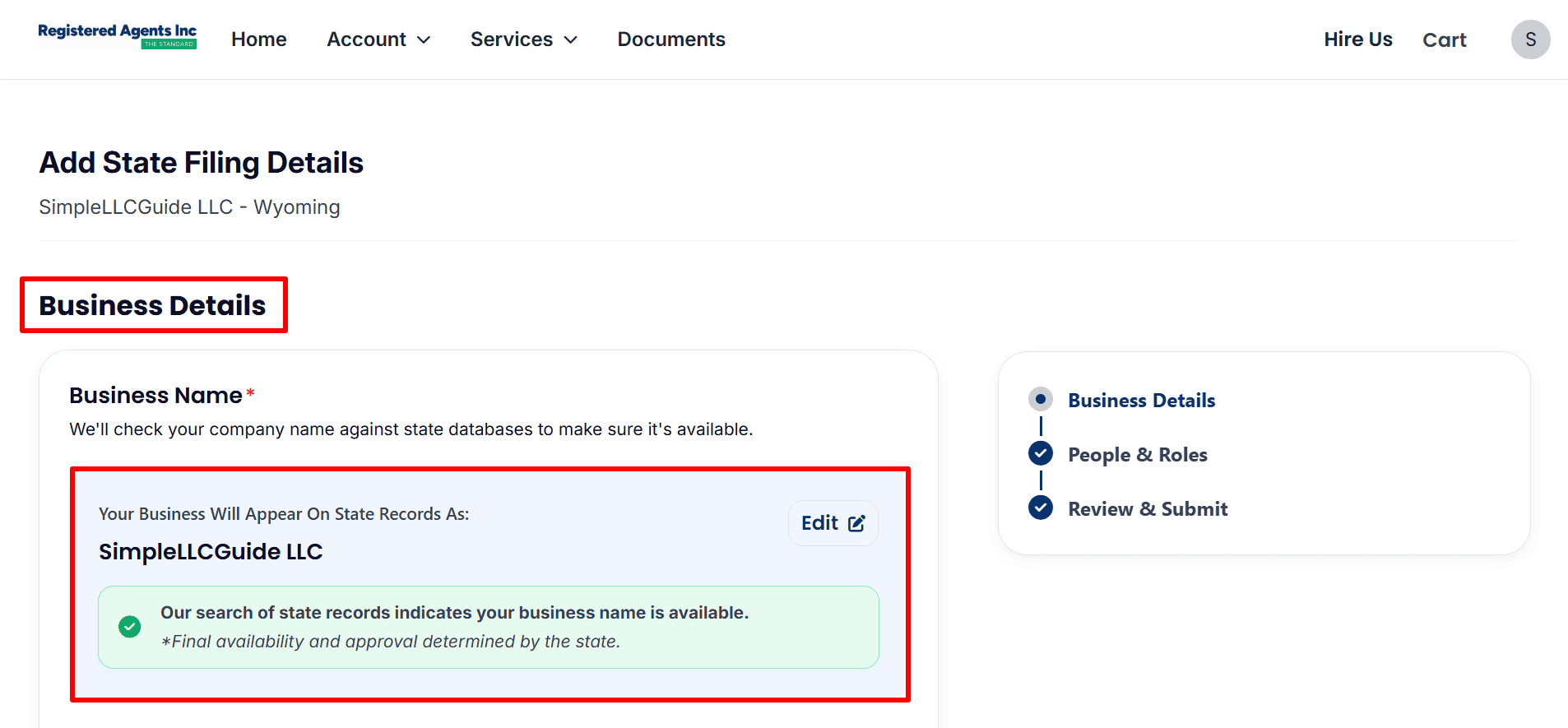
- Business Name: The example shows SimpleLLCGuide LLC on Wyoming state records. Review your own name and use Edit if it needs correction. The page’s availability check is preliminary; the state makes the final decision.
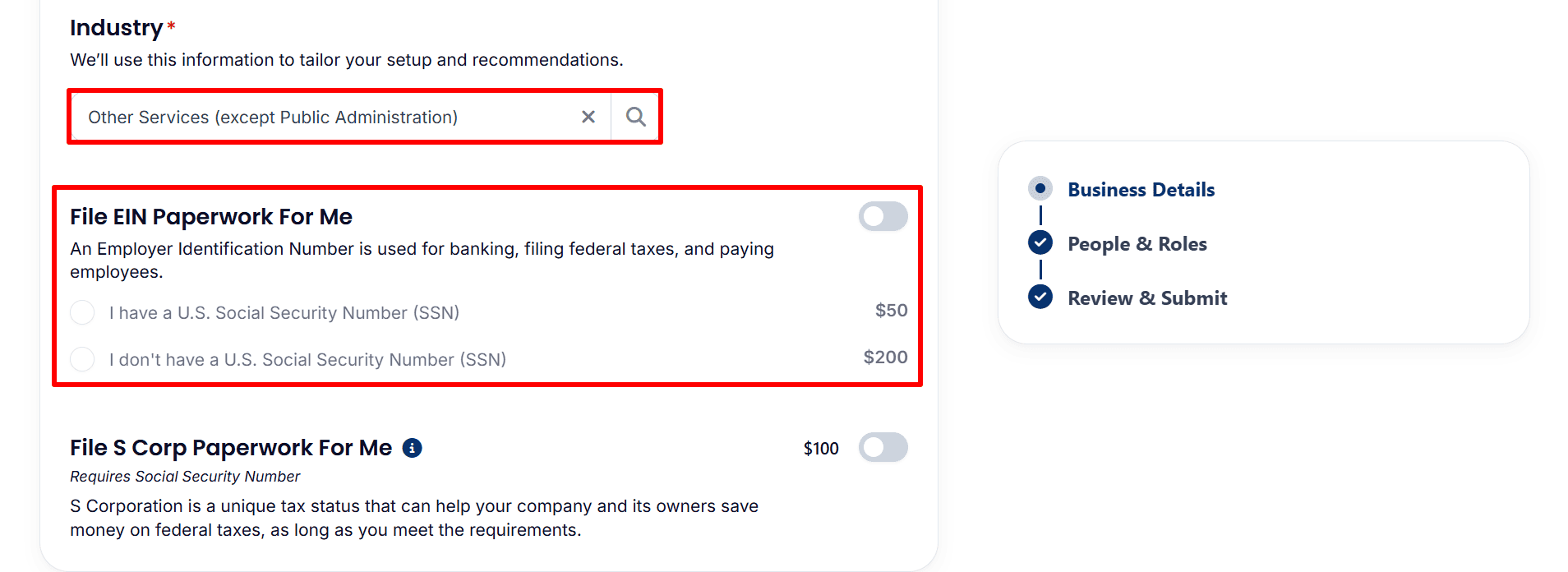
- Industry: The example selects Other Services (except Public Administration). Search for and choose the category that best describes your business.
- File EIN Paperwork For Me: This optional service is off in the example. If you ask Registered Agents Inc to process your Employer Identification Number (EIN), a fee applies. The screen shows different fees depending on whether you have a U.S. Social Security number. You can instead apply through the IRS yourself without an EIN application fee:
- If you are a U.S. resident or citizen, follow the guide from here.
- If you are a non-U.S. resident, follow the complete guide from here.
- File S Corp Paperwork For Me: This is also optional and is off in the example. Choose it only if it fits your circumstances.
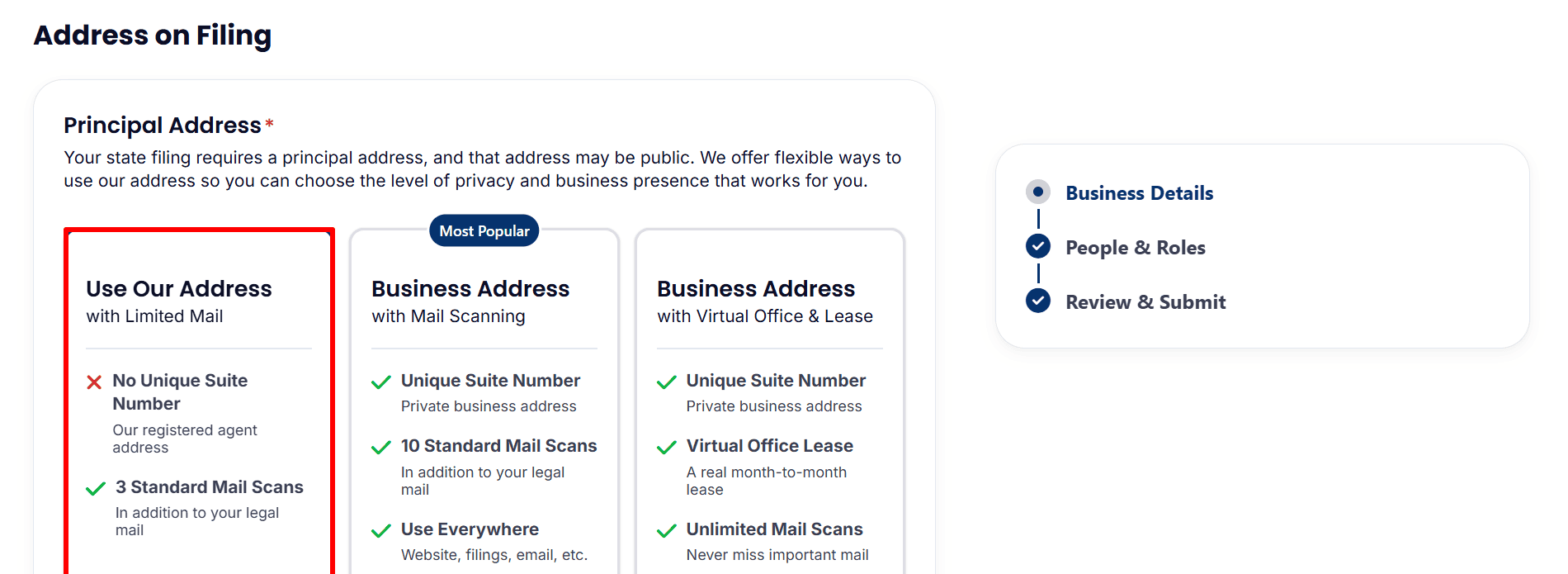
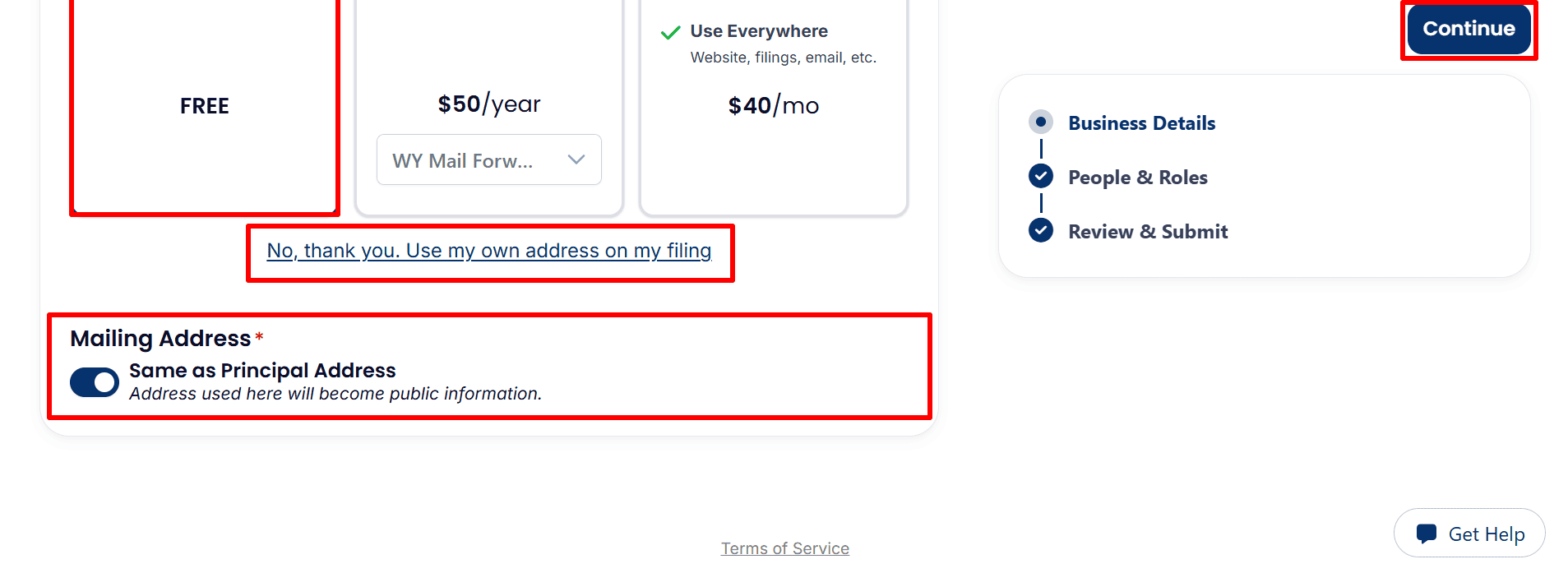
- Principal Address: For the principal address, look at the different address options listed under Address on Filing. The example shows the option ‘Use Our Address with Limited Mail‘, as well as ‘Paid address services’ and ‘No, thank you. Use my own address on my filing‘. Choose an eligible address option that is appropriate for your business.
- Mailing Address: Same as Principal Address is turned on in the example. Check the notice that the address used here will become public information. Change the selection if your mailing address should differ.
- Continue: Click Continue after checking the business and address details.
Step 7: Review the LLC’s People and Roles
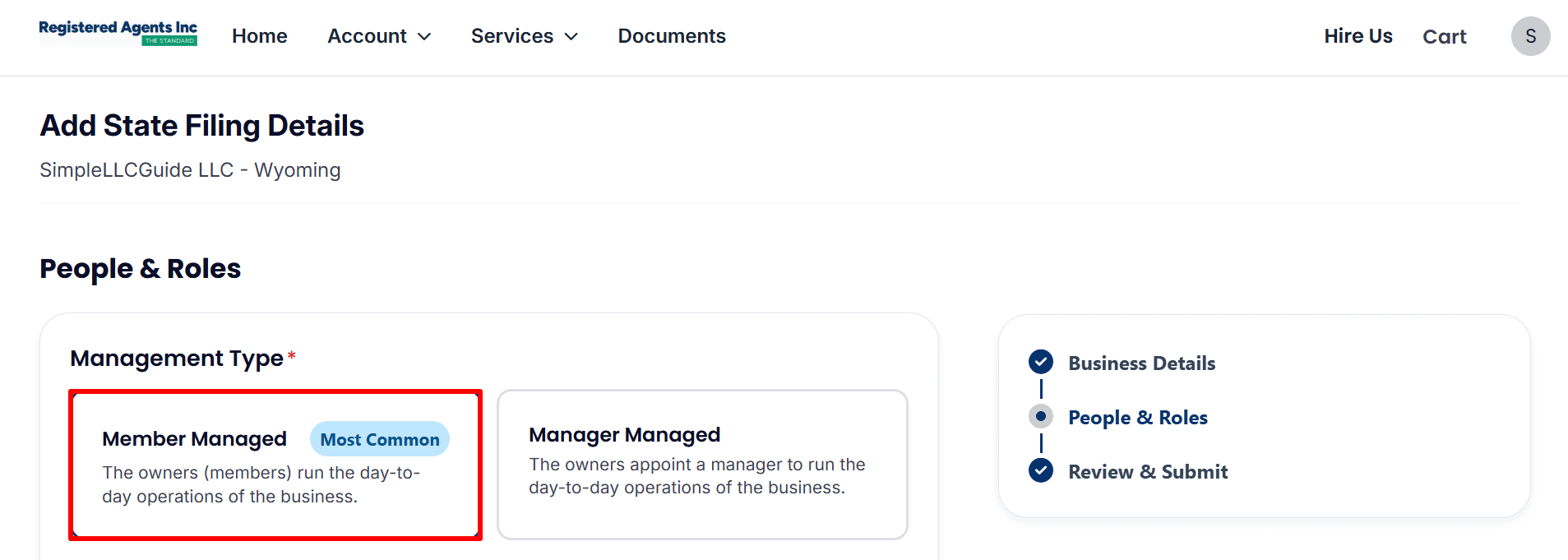
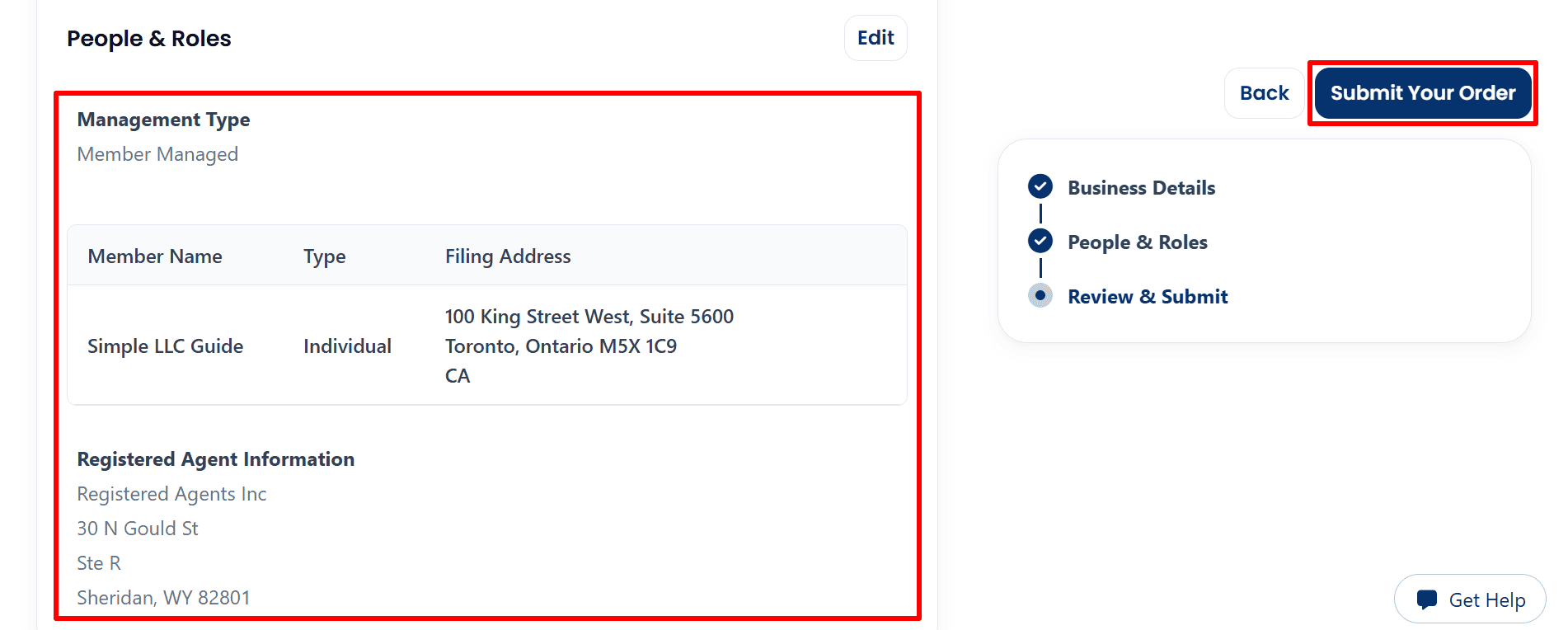
- Management Type: The example selects Member Managed, meaning the owners run the business’s day-to-day operations. Choose Manager Managed instead if appointed managers will run it.
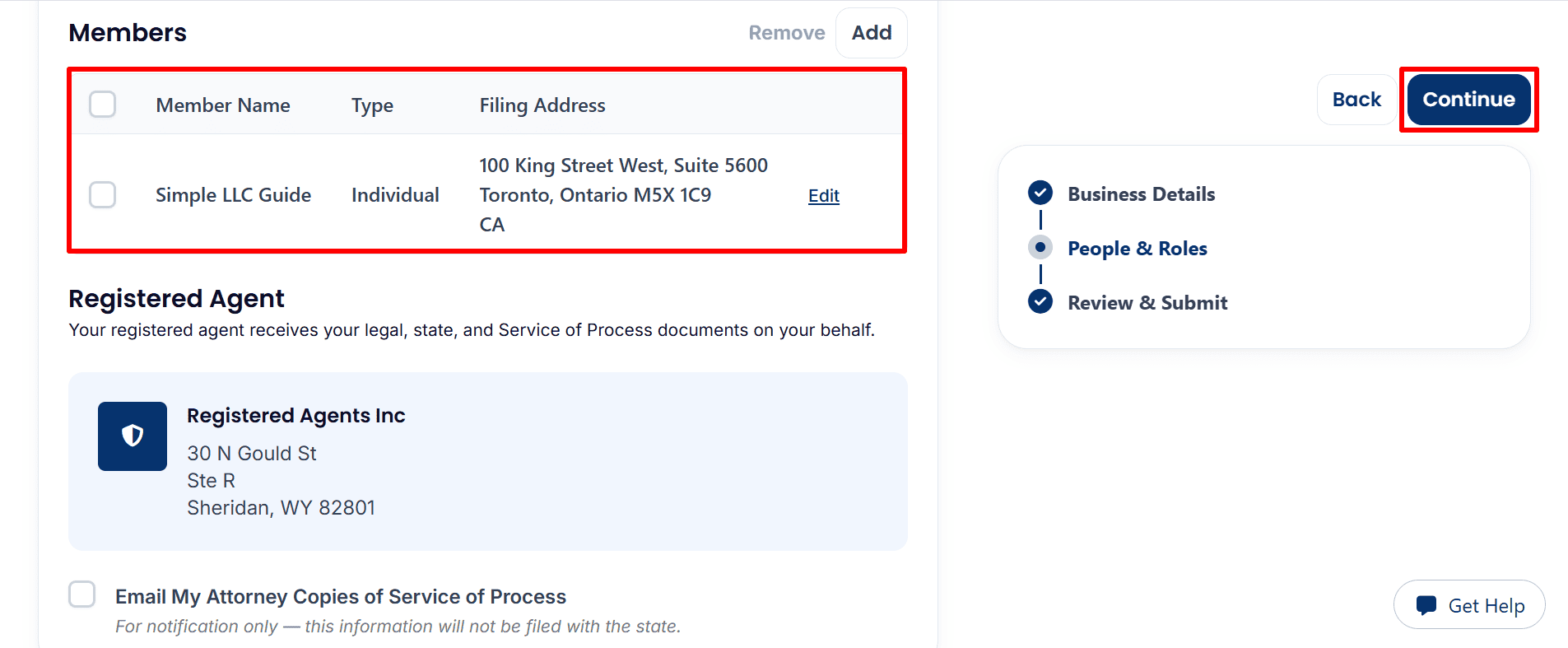
- Members: Review the listed member’s name, type, and filing address. Use Edit to correct an entry or Add to include another member. Enter your own accurate details.
- Registered Agent: The example lists Registered Agents Inc as the Wyoming registered agent. Confirm that this matches the service you selected.
- Attorney notifications: Email My Attorney Copies of Service of Process is unchecked. Select it only if you want that notification.
- Continue: Click Continue to review the filing details.
Step 8: Review and Submit Your State Filing Details
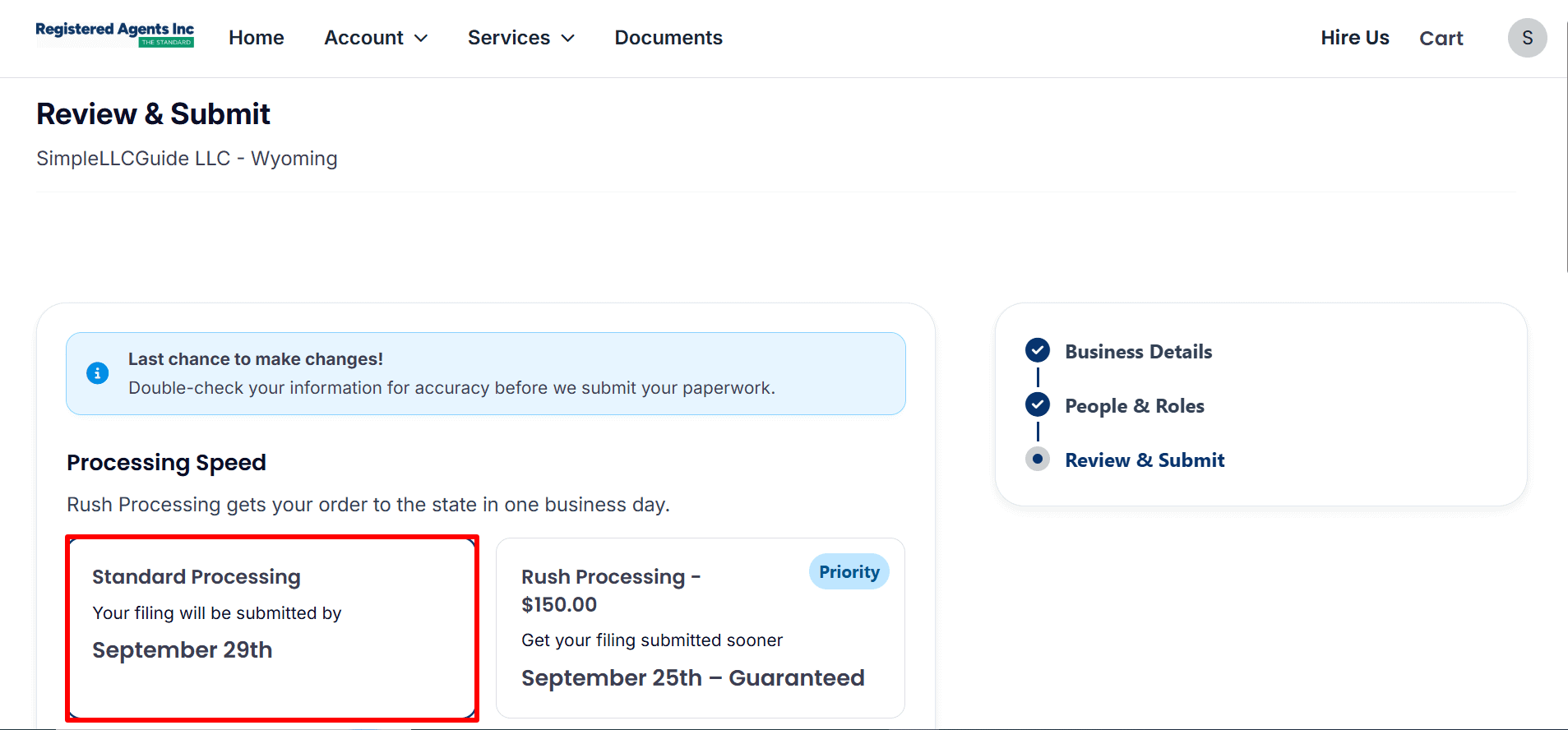
- Processing Speed: The example shows Standard Processing selected, with an estimated submission date displayed on the page. Rush Processing is offered for an extra fee. Choose the option that suits you, and check the dates shown for your own order.
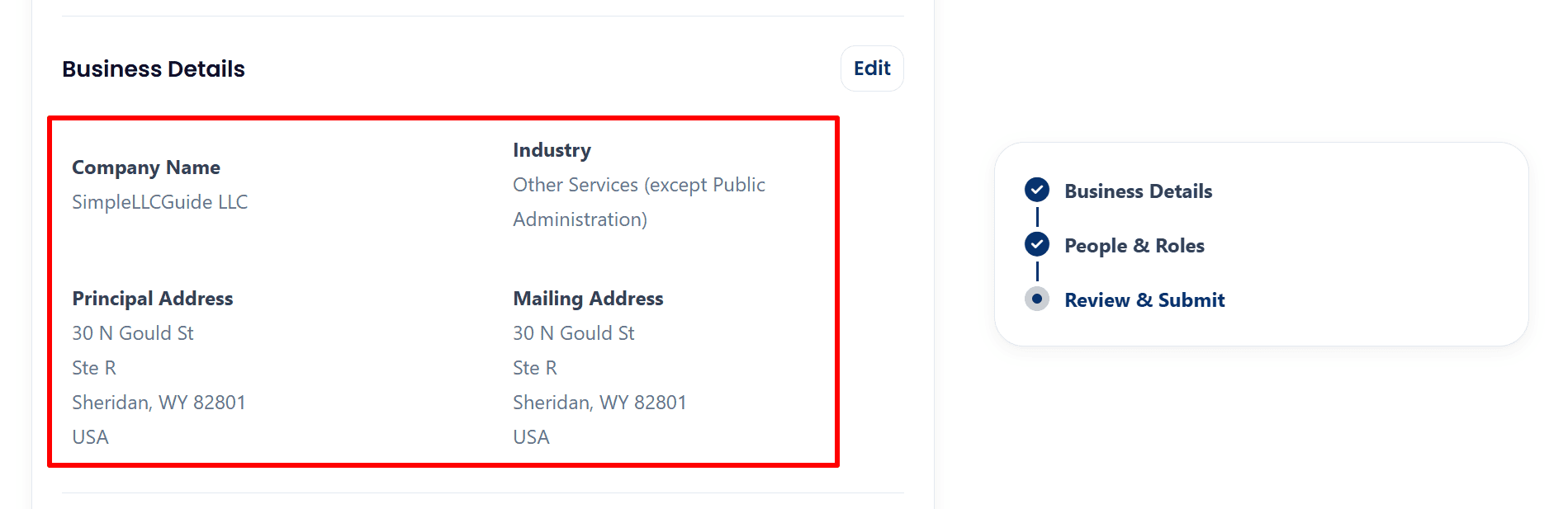
- Business Details: Check the company name, industry, principal address, and mailing address. Click Edit if anything needs correction. Use your own accurate details.
- People & Roles: Confirm the management type, member information, and registered agent. Use Edit to correct any entry.
- Submit Your Order: Once everything is accurate, click Submit Your Order to send these remaining filing details. This screen does not show state approval.
Step 9: Confirm Your Filing Details Were Received
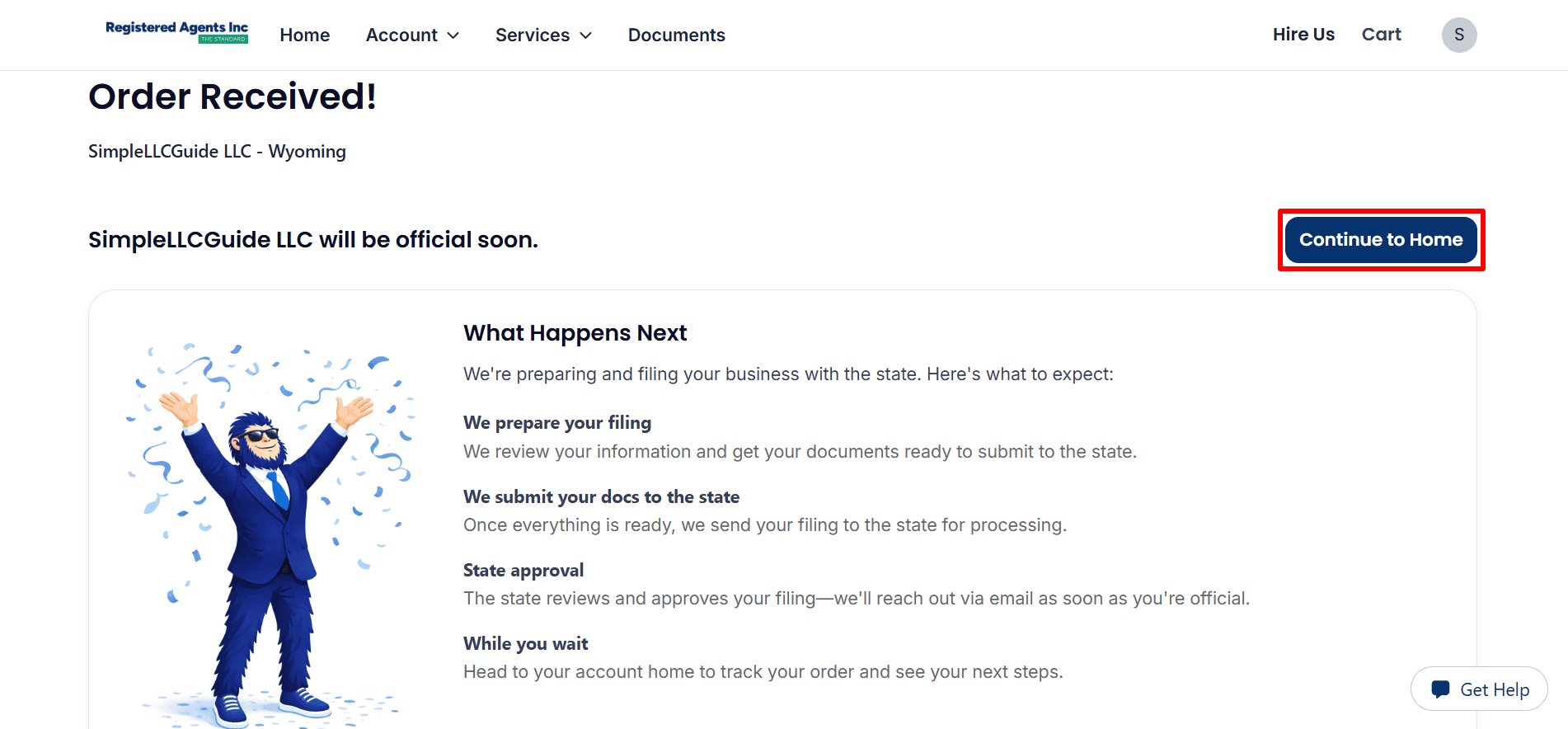
- Order Received: The page confirms that Registered Agents Inc received the completed details for the example Wyoming order.
- What Happens Next: The company says it will prepare the documents, submit the filing to the state, and email you after state approval. Approval has not happened on this screen.
- Continue to Home: Click Continue to Home to track the order and see the next steps.
Step 10: Check Your Account, Services, and Documents
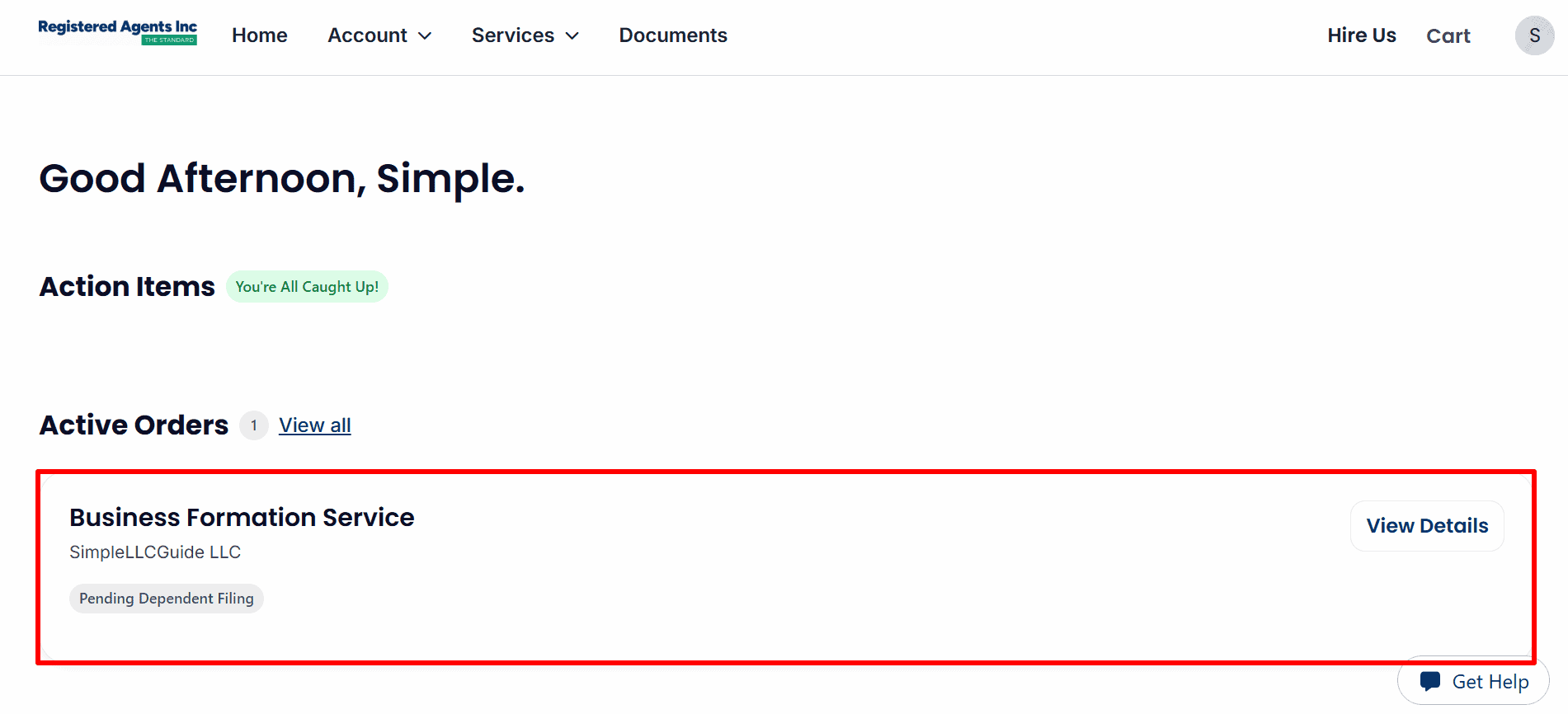
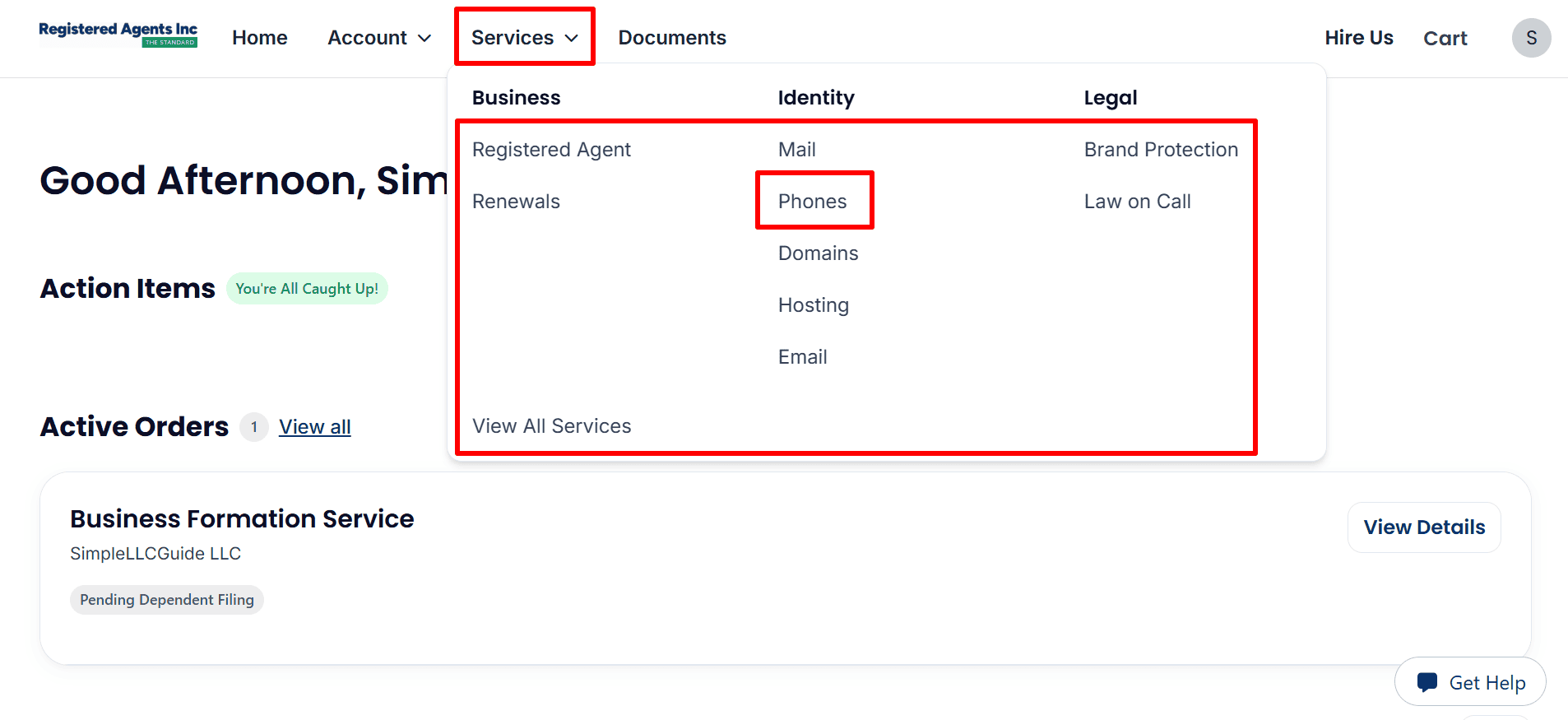
- Active Orders: The account home lists the example LLC formation order as Pending Dependent Filing. Click View Details to check its progress. You’re All Caught Up! means no action item is displayed on this page.
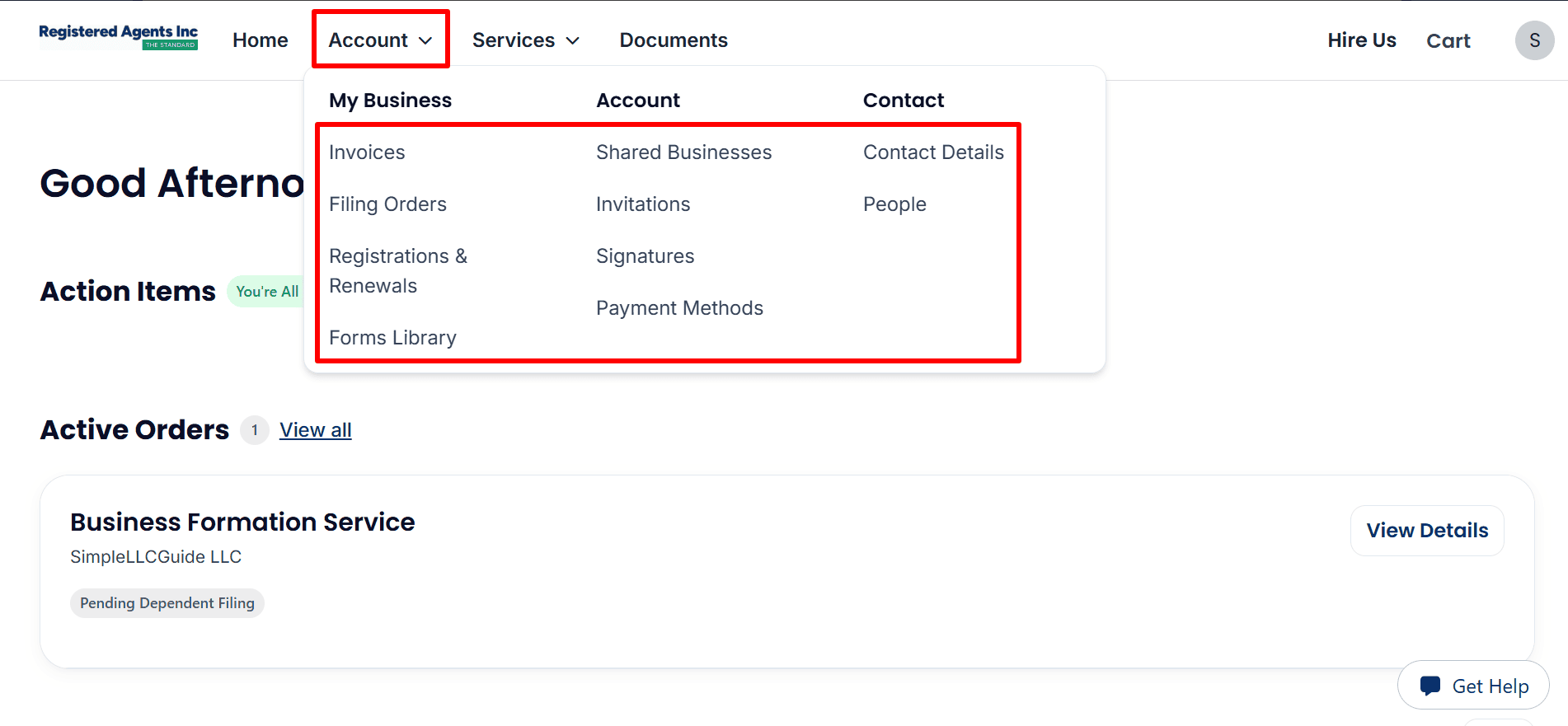
- Account menu: Open Account to find Filing Orders and Invoices, along with other account settings. Use Filing Orders when you want to review your order history.
- Phone service: Open Services and select Phones if you chose the optional phone service and need to manage it. The other services in this menu are separate choices.
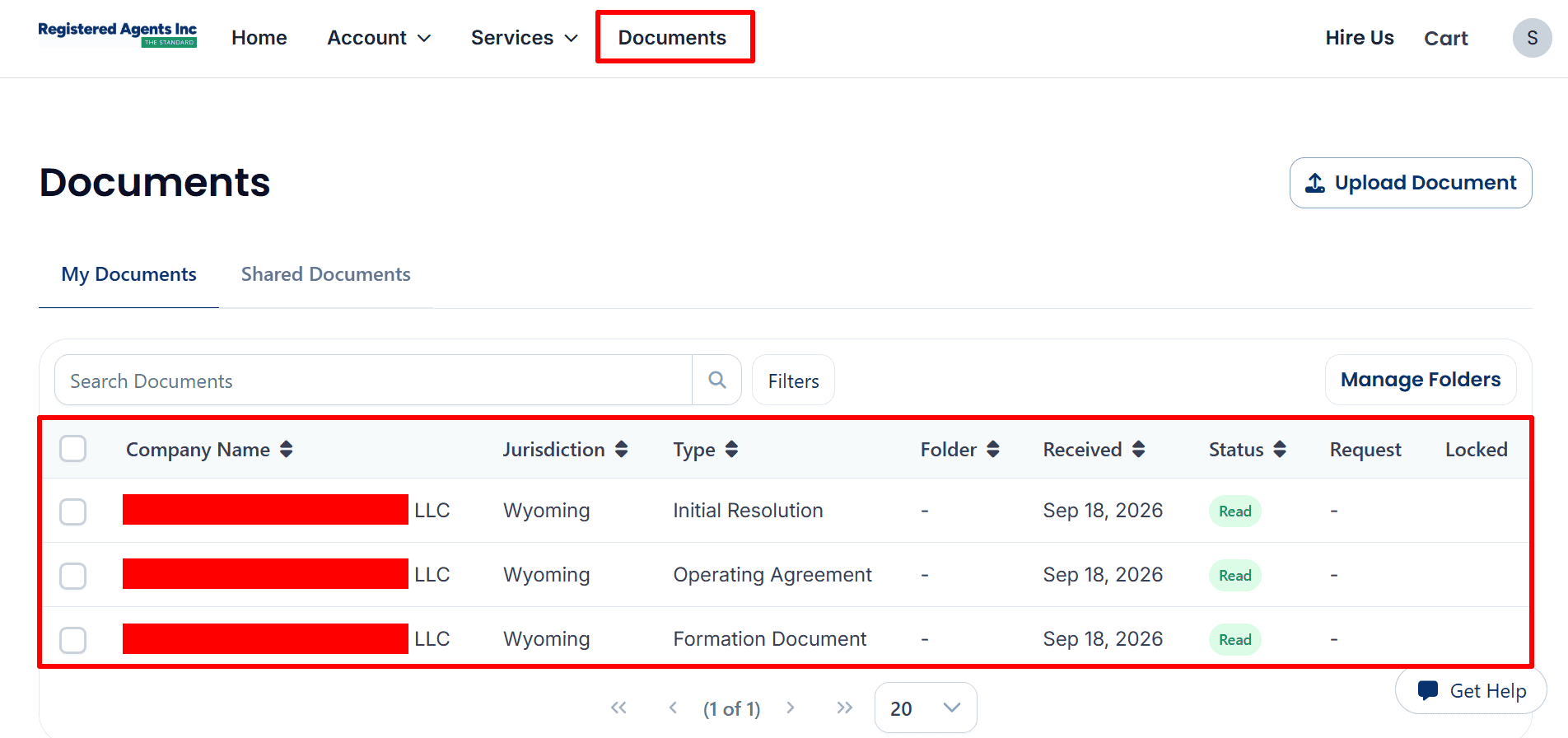
- Documents: To access the documents, you should click on Documents in order to open My Documents. The example list contains an Initial Resolution, an Operating Agreement, and a Formation Document, all of which are marked as Read. You have the option of searching or filtering the list; however, the document entries do not display the current state approval status and you will have to check the filing order for any updates.
What to Do After Starting Your LLC
The example order is still being processed. Once you have entered the details of the state filing, you should use your account to check on the status of the order and keep the information for later use.
- Review your order: log in to the account dashboard and select View Details to keep an eye on the formation status.
- Respond to requests: When a request is made, give the precise information needed as soon as possible.
- Save your records: Keep your records by retaining your invoice and looking at the Initial Resolution, the Operating Agreement, and the Formation Document that are in My Documents; meanwhile, check your state filing status on your own before considering the LLC to be approved.
- Follow up on your EIN: If you’ve asked for your EIN to be processed, then check for any updates. Alternatively, you can read the guide titled Get Your EIN from the IRS to find out how to apply without having to pay an IRS application fee.
- Plan your business tools: When it’s the right time, compare Mercury and Airwallex’s business accounts, Square Payments, Hostinger’s website plans, and Google Workspace email services, and make sure you check each provider’s requirements for your Canadian-based business before you apply.
Helpful Resources
- Start Your LLC here
- Read the EIN Guide here
- Explore ITIN Assistance here (Save $50 with code
REGISTERUSLLC50) - Review Square Payments here
- Check Mercury Bank Eligibility here
- Explore Airwallex here
- View Hostinger Plans here
- Explore Google Workspace here
Final Thoughts
Setting up a U.S. LLC from Canada entails doing more than just placing an order for formation. You must use correct names and addresses, keep copies of your records, and at the same time monitor the account dashboard as the Wyoming filing proceeds.
The example screenshots display an order that has been received and a pending status, not state approval. Carry out the next business steps when they match your requirements and you have confirmed those requirements. If you want to start your own application, you can do so by going to Start Your LLC through Registered Agents Inc.
Related Articles from SimpleLLCGuide.com
- Get Your EIN from the IRS — Read the EIN Guide here
- Wyoming LLC vs New Mexico LLC for Non-U.S. Residents
- How Non-U.S. Residents Can Form a U.S. LLC
- How to Start a Wyoming LLC
Special Note and Disclaimer: Simple LLC Guide is an educational affiliate website and does not provide legal, tax, financial, or accounting advice. We promote lawful and ethical business practices consistent with Islamic principles. We do not support unlawful activities, deceptive practices, gambling, interest-based business models, or arrangements that lack genuine ownership, responsibility, or commercial risk. Visitors are responsible for complying with applicable laws and ethical standards. Some links are affiliate links. CoreBridge Solutions LLC may earn a commission from qualifying purchases, generally at no additional cost to the visitor.